

A step-by-step tutorial. Total time: about an afternoon. Cost: free.
| The short answer: yes, an instructional designer can build a working AI roleplay simulation without writing a line of code. You load a free template called the Sim Creator into Claude or Gemini, answer about a dozen questions, paste the prompt it writes into Google AI Studio, and embed the resulting app in your Captivate, Storyline, or Rise course. This tutorial walks through every step. |
Why build this at all?
Soft skills do not stick from slides. A rep can ace every quiz on de-escalation and still freeze the first time a real person screams down the phone. The knowledge was never the problem. The pressure was.
Skill is what survives pressure. The only thing that builds it is reps: realistic practice, under realistic tension, with feedback. Until recently, that required a roleplay partner, a room, and time nobody had. Now a believable, emotional AI character can play the other side of the conversation in the browser, on demand, for free.
We proved it with a demo we call Horizon Travel: a customer service agent answers a call from a traveler whose flight just got cancelled, de-escalates by voice in real time, and gets scored and coached when the call ends. The flight is a costume. Swap the character and the stakes, and the same engine trains sales objections, negotiations, or a hard feedback conversation. This tutorial shows you how to build your own version.
| Download the Ninja Tropic Sim Creator Free. Load it into Claude or Gemini, answer the questions, and build your first soft skills simulation today. Download link goes here |
What you will build
By the end, you will have a self-contained web app, embedded in your course, where your learner:
- Talks (or types) with an emotional AI character who reacts to what they actually say.
- Hears the character respond out loud, with a tone that shifts as the conversation goes well or badly.
- Can ask an AI coach for help mid-session without being penalized.
- Gets a verdict at the end (Success or Needs Work), the emotional arc they created, the moves they hit or missed, and one concrete adjustment.
- Can retry with a fresh scenario, so the practice repeats without repeating.
What you need before you start
- The Ninja Tropic Sim Creator. A free markdown file. Download link at the bottom of this page.
- Access to Claude or Gemini. Either works. This is where the Sim Creator runs its interview.
- A free Google account. For Google AI Studio, which turns the prompt into a working app. The free tier covers everything in this tutorial. No credit card.
- Chrome. The voice features rely on Chrome’s built-in speech recognition.
- Optional: your content. If you have a framework, script, or talking points your team already teaches, have it handy. The simulation gets noticeably better when it is built on your real material.
No Captivate license is required to build and test the app. You only need your authoring tool at the very end to embed it.

Step 1: Pick one moment your learners dread
Do not start with a topic. Start with a moment. The angry customer demanding a refund you cannot give. The buyer who says the price is too high. The teammate who needs hard feedback. One specific, high-pressure conversation where the right behavior matters and usually fails.
This is Cathy Moore’s action mapping in one sentence: design for what people need to do, not what they need to know. The Sim Creator will hold you to it, but walking in with the moment already picked makes everything faster.
Step 2: Load the Sim Creator into Claude or Gemini
Open a new conversation in Claude or Gemini and paste in the entire Sim Creator file as your first message. That is the whole setup. The file is a structured prompt that turns the AI into an interviewer.
It will greet you, invite you to paste any framework or script you already have, and then ask its first question. From here, you just answer in plain language.
| Why this works: AI communicates best with AI. A prompt drafted in conversation with one model and then handed to the builder produces a dramatically better app than typing requirements straight into the build tool. The Sim Creator packages that whole drafting conversation into a guided interview, with the instructional design science and the technical decisions already baked in. |
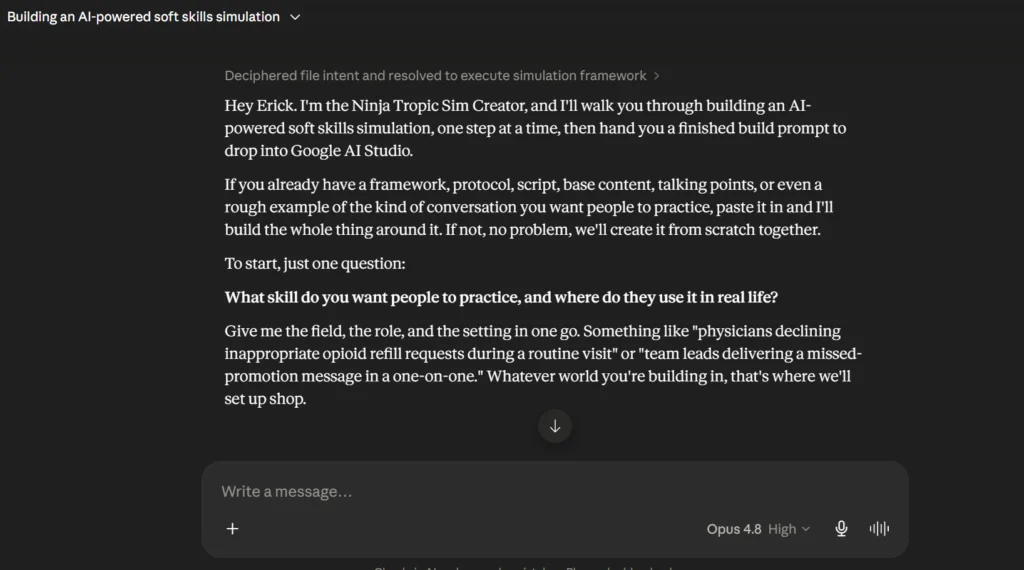
Step 3: Answer the interview (about 13 questions)
The interview runs in five short parts. Answer what you know, skip what you do not, and let it default the rest.
- Discovery (4 questions). What needs to change, who the learner is, what they should be able to DO afterward, and what a hard version of the moment looks like.
- Pathway. Based on your answers, it recommends one of three proven structures: customer service and de-escalation, sales and objection handling, or negotiation and difficult conversations. Pick it, swap it, or blend it.
- Follow-ups. The character, the scenario variations, what counts as success, what makes things worse, the emotional range, and whether you want the hands-free voice option.
- Experience playback. Before anything gets built, it reads the whole experience back to you screen by screen and surfaces every default it chose. This is your cheapest moment to change your mind. Do not skip it.
- Branding. Last question: your colors and tone of voice, so the app comes out looking like yours.
When you confirm, it writes the finished build prompt as one copyable block, plus a short setup note for the next step.
Step 4: Set up Google AI Studio
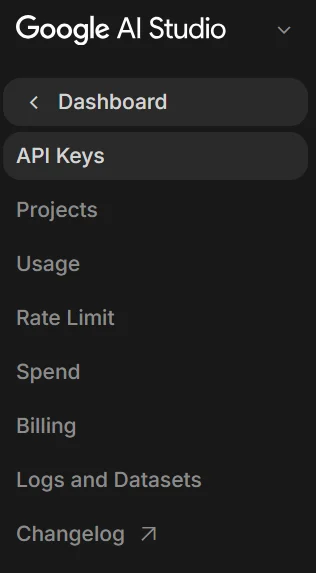
Go to aistudio.google.com and sign in with any Google account. Then click dashboard and:
- Create a free API key. AI Studio will walk you through it. No billing, no credit card. Then guard it. A leaked API key is worse than a leaked credit card number, because someone else’s usage lands on your account. Keep it private; never paste it into a shared doc.
- Open the Build section. This is the part of AI Studio that turns a written prompt into a working web app.
- Turn on the right add-ons. Enable text-to-speech, voice conversations, low-latency responses, and high thinking. Skip database and authentication. You do not need them.
Step 5: Paste the prompt and build
Copy the build prompt the Sim Creator wrote and paste it into AI Studio’s Build. Then wait a minute or two while it generates.
You will get a live preview. Here is the discipline that saves you time: ignore the look and feel on the first pass. Check the functions. Does the character respond? Does the voice play? Does the scoring fire when you end the session? Function first, polish later.
Step 6: Test it like a learner, then iterate
Run the simulation badly on purpose. Tell the angry customer to calm down. Hide behind policy. Then run it well: acknowledge, take ownership, offer options. The character should get worse in the first run and better in the second, and the final verdict should know the difference.
When something is off, just tell AI Studio what to change in plain language, the same way you would give feedback to a designer. Iterate until it feels right. Expect two or three passes.
Common fixes, so you do not lose the week we lost
- Replies feel slow. Tell the build to show the character’s text the instant it arrives and play the audio a beat later, keep replies to one to three sentences, and turn off the model’s thinking step on conversation turns. A fast conversation feels real. A laggy one feels like software.
- The mic drops words. Tell the build to keep listening for the entire button press and only send when you release, and to never treat a recognition error as part of the conversation.
- No audio plays. Gemini’s text-to-speech returns raw audio that browsers cannot play directly. Tell the build to wrap it in a WAV header. This one line fixes most silent-character problems.
Step 7: Embed it in your course
When you are happy with the app, export it as an HTML file or publish it from AI Studio and grab the link. In Captivate, add a slide and insert it as a web object. Storyline and Rise work the same way through their web object or embed options.
| The one technical catch you must know: voice input does not work inside a SCORM iframe. Captivate, Storyline, and Rise all block microphone access in their embedded frames. The fix is built into every Sim Creator app: the text version runs inside your course (the learner types, the character answers in text and voice-over, transcript visible), and a button launches the full hands-free voice version in a new browser tab, where the mic works normally. Do not fight the iframe. Pop out of it. |

Why this design works (the science part)
This is not novelty. The Sim Creator bakes in the instructional design fundamentals so you do not have to remember them mid-build:
Feedback that teaches. The verdict measures two things at once: did the learner make the right moves, and did the other person actually calm down. You can say all the right words and still leave someone angrier. The score knows the difference.
Action mapping. Every build starts from a business goal and an observable behavior, then designs practice for that behavior. The simulation is the practice activity action mapping has always called for.
Practice at the right fidelity. Drills teach steps. Branching scenarios teach decisions. Soft skills need the top of the ladder: a live conversation with emotional pressure and feedback. That is what you are building.
Frequently asked questions
Do I need an API key?
Yes, a free one. Google AI Studio creates it for you with no billing setup, and it stays server-side in your app. Treat it as private.
Does this cost anything to run?
The free Gemini Flash tier covers building and demoing. Heavy production use across a large team may eventually need a paid tier, but you can build, test, and pilot for free.
Does it work in Storyline or Rise, or only Captivate?
Any SCORM-compliant tool that supports web objects or embeds. The text version runs inside all of them. The hands-free voice version always opens in a new tab, because every SCORM iframe blocks the microphone.
Can it report scores to my LMS?
The builds in this tutorial are self-contained by design: results display inside the experience. LMS reporting through xAPI is possible as a production step, but skip it for your first build.
How long does this actually take?
The interview takes about fifteen minutes. The first build takes a couple of minutes. Iteration is where the time goes: plan on an afternoon for a first version you would show a colleague.
What if I have never used AI for anything like this?
That is who the Sim Creator is for. It asks plain-language questions, explains its recommendations, plays the whole experience back before building, and makes every technical decision for you.
| Download the Ninja Tropic Sim Creator Free. Load it into Claude or Gemini, answer the questions, and build your first soft skills simulation today. Download link goes here |
Pick one moment your learners dread. Build one simulation. Run it with a colleague. Skill is what survives pressure. Go build something that applies some.
Ninja Tropic is a custom eLearning studio in Phoenix, Arizona. We design microlearning, interactive video, and AI-powered practice for teams who care whether the behavior actually shows up.